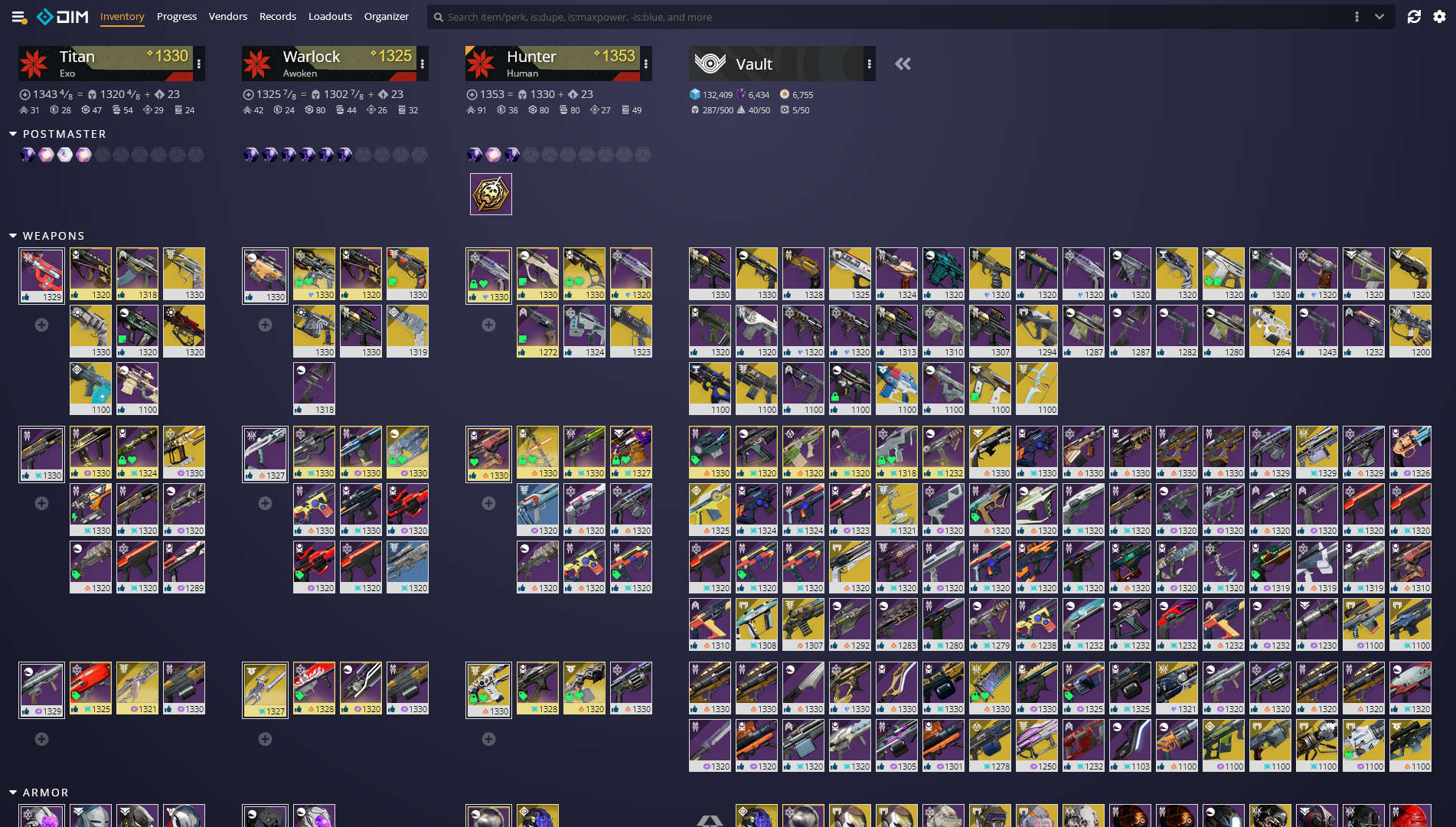
What it is
Destiny Item Manager (DIM) is an open-source progressive web app that connects to your Bungie.net account and lets you manage your entire Destiny 2 inventory without launching the game. Maintained by a community of contributors on GitHub under MIT license, with no official Bungie affiliation but using its public API. Active since 2017.
Runs on desktop browser, mobile (iOS and Android as PWA), and can be installed as a desktop app. English is the primary language and most others (including Spanish) are kept up to date.
What problem it solves
Destiny 2's in-game inventory is structurally limited: postmaster has reduced capacity, the vault can't be filtered beyond basic tabs, and moving a weapon between characters means opening character screens, transferring to vault, switching character, and pulling it back out. Multiplied by 200+ items, management eats hours weekly.
DIM collapses all of that into a searchable grid: you see all three characters and the vault on a single screen, drag-and-drop between slots, powerful search syntax (is:weapon is:masterwork perk:rampage filters instantly), and saved loadouts that equip with one click.
How it differs
Versus Braytech (the closest OSS alternative), DIM focuses on active inventory management, while Braytech is oriented to progression tracking (bounties, triumphs, vendor checklists). Both coexist in many players' flow: DIM for "build today's loadout", Braytech for "see what I'm missing this week".
Versus Bungie's official Companion app, DIM wins on speed, search capability, and loadouts. The official one wins on clan/fireteam finder integration.
What people use it for
Building loadouts per activity: you save "PvE Solar Warlock Loadout", "Trials Hunter Loadout", "Raid DPS Loadout" and equip them with a click before the activity. DIM transfers all gear and mods automatically.
Cleaning the vault without panic: with searches like is:dupe is:weapon -is:masterwork you see non-masterworked duplicates at a glance and shard them in bulk. Same with old armor you no longer use.
Comparing god rolls: manually tag (favorite, junk, infuse) weapons by role and filter by tag to decide what to keep when the vault fills up.
Moving gear fast: drag-and-drop between character and vault, without the tedium of the official flow. When you're mid-raid and the rotation changes, DIM saves you minutes.
Loadout Optimizer: the dedicated tab combines armor + mods + target stats and tells you which piece to use in each slot to hit the stat budget you want.
Who it's not for
If you play Destiny 2 very casually (an hour every couple weeks) and never touch endgame, DIM is overkill. Bungie's official Companion app covers the basics.
If you don't have a Bungie.net account or don't want to authorize OAuth, DIM won't work — API connection is mandatory for any action.
How to use it in practice
- Open
destinyitemmanager.comand click "Authorize with Bungie.net" — normal OAuth flow, doesn't ask for credentials directly. - Wait for inventory to sync (3-5 seconds first time).
- To move an item, drag it to the destination character or vault. The in-game animation reflects it in seconds.
- To create a loadout: click the character → "Loadouts" → "Create Loadout" → select items and mods → save with a name.
- For advanced searches: top bar with syntax like
is:weapon -is:masterwork stat:range:>50. Full query docs are in the help button.
Honest limitations
Depends on the Bungie API: if Bungie has maintenance or the service goes down, DIM doesn't work. This typically happens on big expansion patch days.
Loadouts are limited to items you already own: you can't "plan" a build with weapons that haven't dropped yet. For that, other tools exist.
The search learning curve is real: the syntax is powerful but reading the docs pays off. Newcomers usually ignore advanced filtering and miss half the value.
Doesn't replace the game for some operations: certain flows (claiming seasonal pass tiers, exotic quest steps) still require opening Destiny 2.
How to get started
Head to destinyitemmanager.com, authorize with your Bungie.net account (Steam / PlayStation / Xbox), and you're in. First time, explore the three characters, try moving an item to vault, and check the Loadouts panel. In under 10 minutes you'll be moving gear faster than inside the game.
Alternatives to Destiny Item Manager
If Destiny Item Manager isn't the right fit, these Destiny 2 tools cover similar needs.